Unreal Engine 3D Models from One Picture
Make Unreal Engine 3D models from one image: a textured GLB in 3 to 5 minutes that Interchange imports as a static mesh with materials. No plugin needed.
- 3 free credits, no card
- glTF import is built in
- Nanite-ready static meshes
By SupaVoxel Team·Updated
Drop in a picture, get a 3D model
3 free credits · Google sign-in · no card
How to get AI 3D models into Unreal Engine
The import side uses Interchange, Unreal's file-format-agnostic import framework. Its Interchange Editor and Interchange Framework plugins are enabled by default.
- 01
Generate from one image
Upload a clear picture of one object here or in the studio. Geometry-only costs 1 credit; textured costs 3 and needs a paid plan. Geometry is usually ready in under a minute, textured models in 3 to 5 minutes. - 02
Download the GLB
GLB is the free download. It carries the mesh, UVs and PBR textures in one file, which is what Interchange's glTF pipeline expects. - 03
Import
Drag the GLB into the Content Drawer or Content Browser, or use the Import button there. File ‣ Import Into Level also works – it currently supports only glTF and MaterialX. - 04
Pick the pipeline stack
The Interchange Pipeline Configuration window opens. Choose the pipeline stack, review the settings, and click Preview to see which assets will be created (static mesh, materials, Texture2D) before you commit. - 05
Enable Nanite and collision
Tick Build Nanite in the import options, or later: right-click the mesh in the Content Browser and choose Nanite ‣ Enable. Then open the Static Mesh Editor and add simple collision from the Collision menu. - 06
Place, scale and light
Drop it in the level and compare it with a default cube, which is 100 units (1 m) on a side. Scale the asset, not every instance, then light it with Lumen.
Unreal Engine 3D models made from one picture
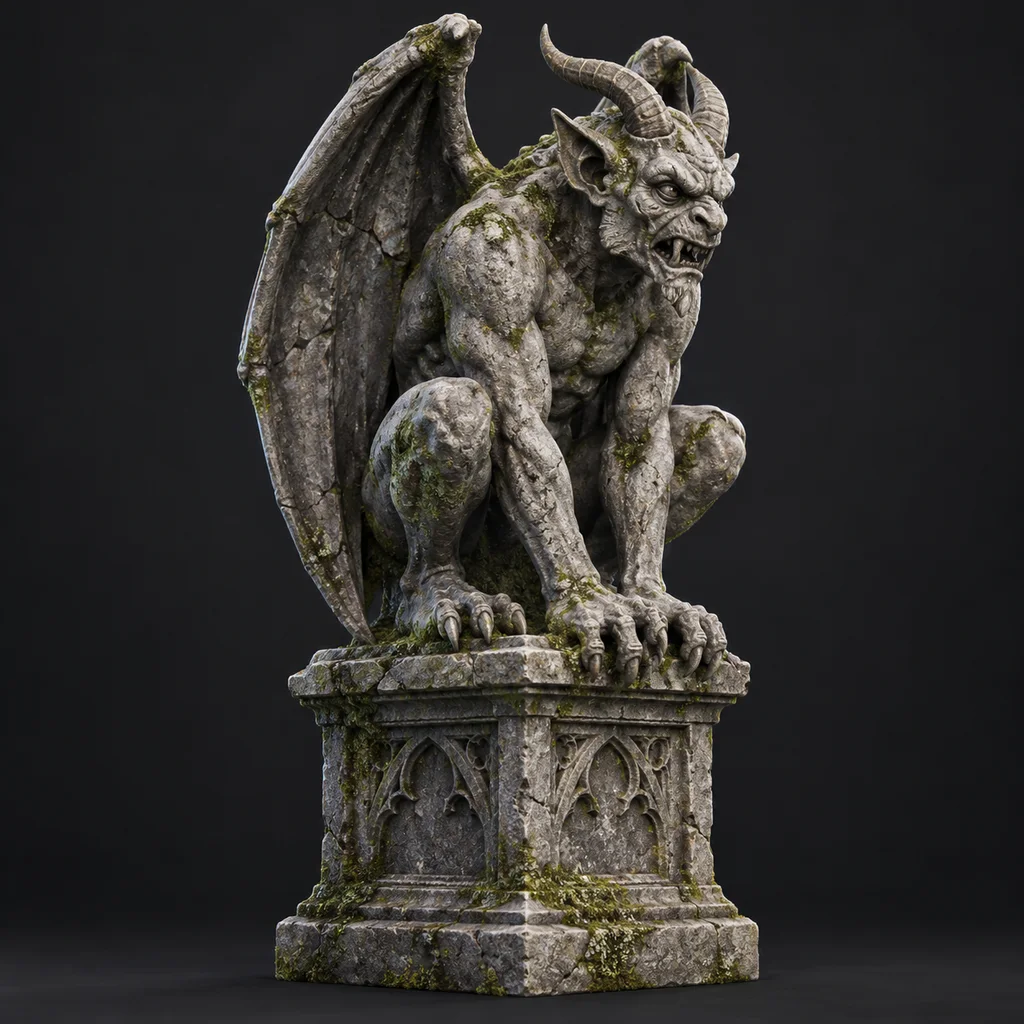
Environment pieces and props of the kind that fill an Unreal level. Rotate each one to check the texture and silhouette before you spend a credit.
Import settings for 3D models for Unreal Engine
What to set in the Interchange dialog and the Static Mesh Editor for a generated mesh. Names as of October 2026.
Choose Pipeline Stack
- Where
- Interchange Pipeline Configuration
- Recommended
- Default glTF stack
- Why
- Stacks live in Project Settings ‣ Interchange if you need a custom one
Preview
- Where
- Interchange Pipeline Configuration
- Recommended
- Use it once per new source
- Why
- Lists every asset that will be created and its type
Build Nanite
- Where
- Import options
- Recommended
- On for detailed static props and statues
- Why
- Nanite renders very high triangle counts efficiently
Generate Lightmap UVs
- Where
- Import options
- Recommended
- Off if you use Lumen, not baked lighting
- Why
- Epic recommends disabling it without Lightmass; it adds a UV channel and import time
Enable Nanite Support
- Where
- Static Mesh Editor ‣ Nanite Settings
- Recommended
- Turn on later if you skipped it at import
- Why
- Same result as Build Nanite
Simple collision
- Where
- Static Mesh Editor ‣ Collision
- Recommended
- Box or auto convex
- Why
- Cheaper than complex-as-simple
| Setting | Where | Recommended | Why |
|---|---|---|---|
| Choose Pipeline Stack | Interchange Pipeline Configuration | Default glTF stack | Stacks live in Project Settings ‣ Interchange if you need a custom one |
| Preview | Interchange Pipeline Configuration | Use it once per new source | Lists every asset that will be created and its type |
| Build Nanite | Import options | On for detailed static props and statues | Nanite renders very high triangle counts efficiently |
| Generate Lightmap UVs | Import options | Off if you use Lumen, not baked lighting | Epic recommends disabling it without Lightmass; it adds a UV channel and import time |
| Enable Nanite Support | Static Mesh Editor ‣ Nanite Settings | Turn on later if you skipped it at import | Same result as Build Nanite |
| Simple collision | Static Mesh Editor ‣ Collision | Box or auto convex | Cheaper than complex-as-simple |
Placing AI assets: Unreal Engine checklist
Generated meshes are triangle meshes, which is exactly what Nanite expects – a Nanite mesh is still a triangle mesh at its core, broken into clusters on import. That makes dense AI meshes a good match for Nanite on desktop and console. Nanite doesn't fix everything, so measure: instance counts, triangles per mesh and material complexity still need checking on your target hardware.
- Nanite on for statues, rocks, ruins and dense props
- Simple collision on anything the player touches
- One material per generated mesh – keep it that way
- Scale the asset once: 100 uu = 1 m
- Mobile target? Decimate first instead of relying on Nanite
What Unreal Engine 3D models from AI are good for
Be clear about the job before you generate. These meshes are static, textured and triangulated.
Environment dressing
Greybox replacements
Virtual production and previs
Static characters
Fast iteration
Scriptable imports
Do and don't for AI meshes in Unreal
- Keep source GLBs in a folder outside Content and reimport from there
- Use Preview in the Interchange dialog on the first import
- Enable Nanite for dense props on desktop and console
- Add simple collision instead of using complex collision
- Check the material instance under your real lighting
- Expect a skeleton – import as a static mesh
- Turn on Generate Lightmap UVs if you light with Lumen only
- Scale every placed instance – fix the asset scale once
- Rely on the hidden back side from a straight front photo
- Bring a 1M-triangle mesh into a mobile project
Honest limits, and where other tools fit
SupaVoxel builds static meshes. There is no skeleton, no skin weights and no animation in the file, and it isn't the clean quad topology a hero character needs to deform well. For a moving character, retopologize in Blender and rig it there, or convert the GLB with the free GLB to FBX converter and use an auto-rigger like Mixamo (see our Mixamo guide).
The studio exports GLB, OBJ, STL, USDZ and 3MF, but not FBX. You rarely need FBX for static props, because glTF goes straight through Interchange.
The AI also guesses the sides it can't see. A three-quarter view gives a believable back; a flat front photo forces it to invent one. If the back faces the camera in your shot, regenerate from a better angle rather than fixing it by hand.
More engines and free tools
The same GLB works across engines, and these browser tools prepare it with no sign-up.
Frequently asked questions
Can Unreal Engine import GLB files?
Are these Unreal Engine 3D models free?
Should I enable Nanite on AI-generated meshes?
Do I need FBX for Unreal?
Can I use the models in a commercial Unreal game?
Why does my model import at the wrong size?
Can I animate a generated model in Unreal?
What makes good AI assets for Unreal?
Keep going
Build your next level with Unreal Engine 3D models
Upload a picture, import the GLB through Interchange and turn on Nanite. Geometry in under a minute, 3 free credits to start.
No credit card required · 3 free credits to start